
Onboarding a cleaner
This is the route onto SpotlessDoc for a cleaner who works for themselves and is paid for their own work. Five steps, about ten minutes.
Before you start
Section titled “Before you start”Have these ready before you begin. Stopping halfway to find a document is the most common reason setup stalls.
- A phone number that takes texts
- Your vehicle’s make, model, year, colour and plate
- A driving licence to upload
- Your bank details
- The ZIP codes you are willing to work in
Step 1 — create your account
Section titled “Step 1 — create your account”Start from the home page. The dark For cleaners panel is the way in; its button is Apply to clean.
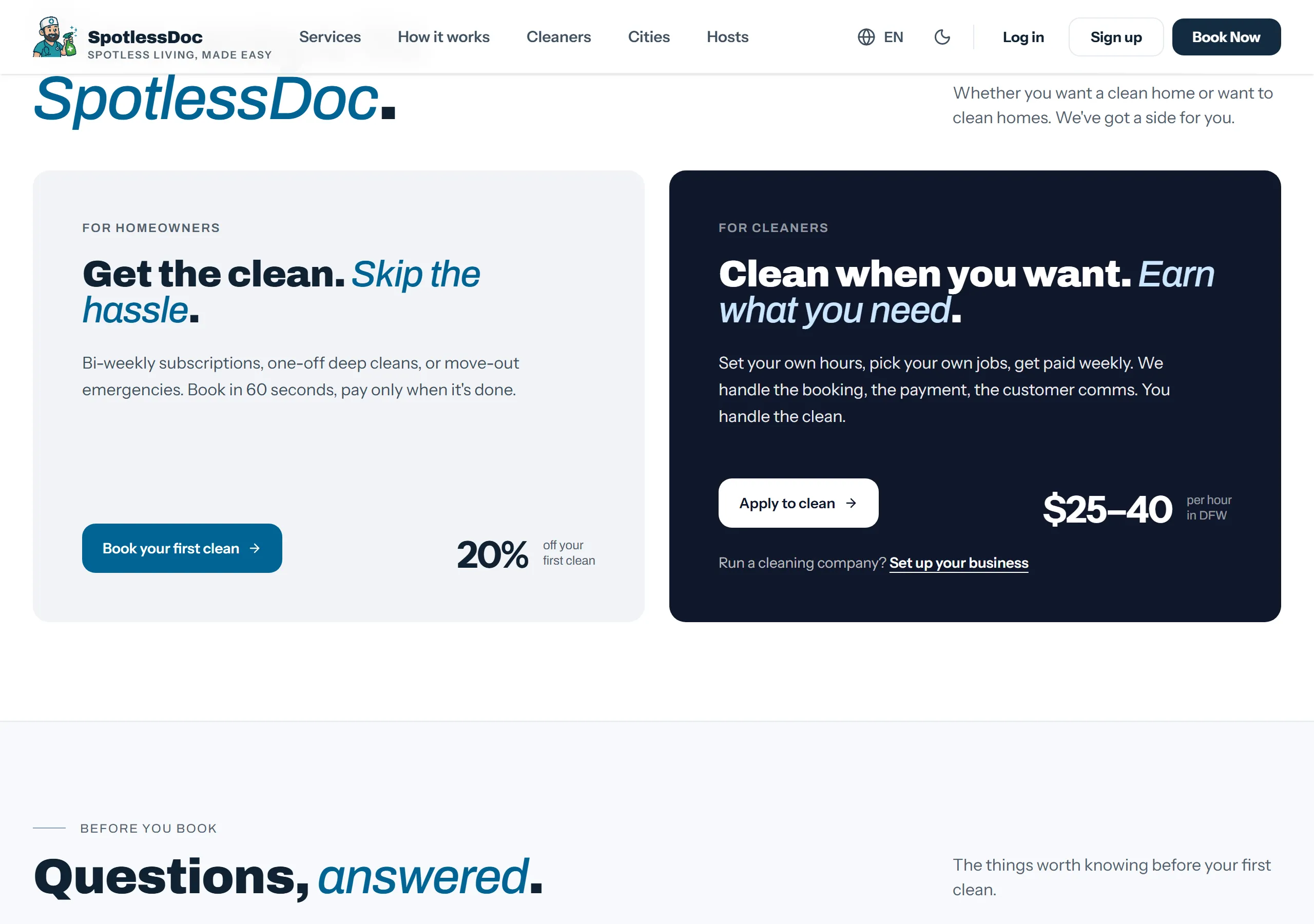
That lands you on a two-screen signup. The first screen is the account itself: your name, email, mobile number and a password, and the box agreeing to the Terms and Privacy Policy.
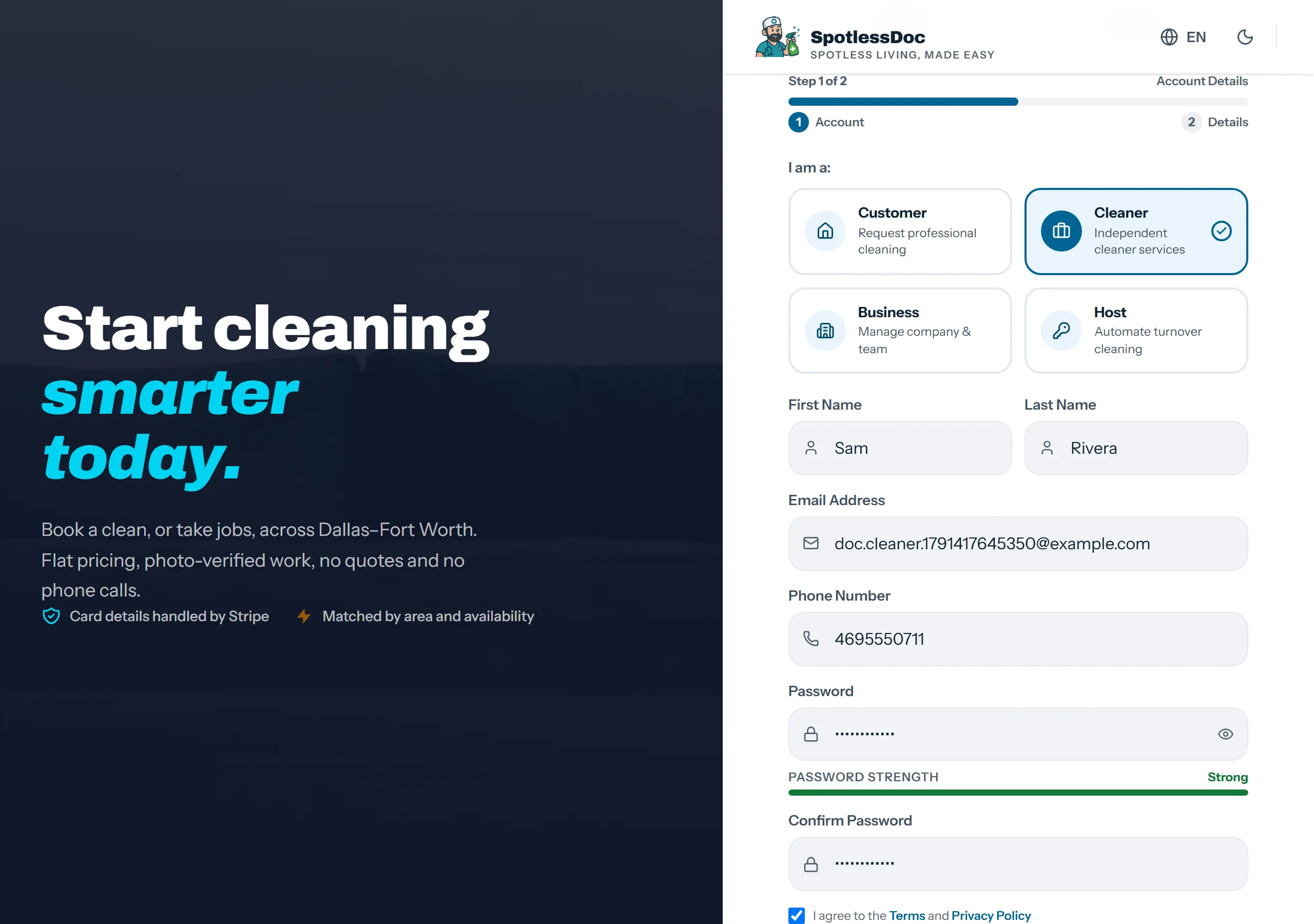
Use a phone number that takes texts. Job offers, arrival reminders and the code at the door all go by SMS, and a landline here means you find out about work late or not at all.
Press Continue when the terms box is ticked.
Step 2 — specialties and vehicle
Section titled “Step 2 — specialties and vehicle”The second screen is headed Almost There. It asks what you clean and what you drive.
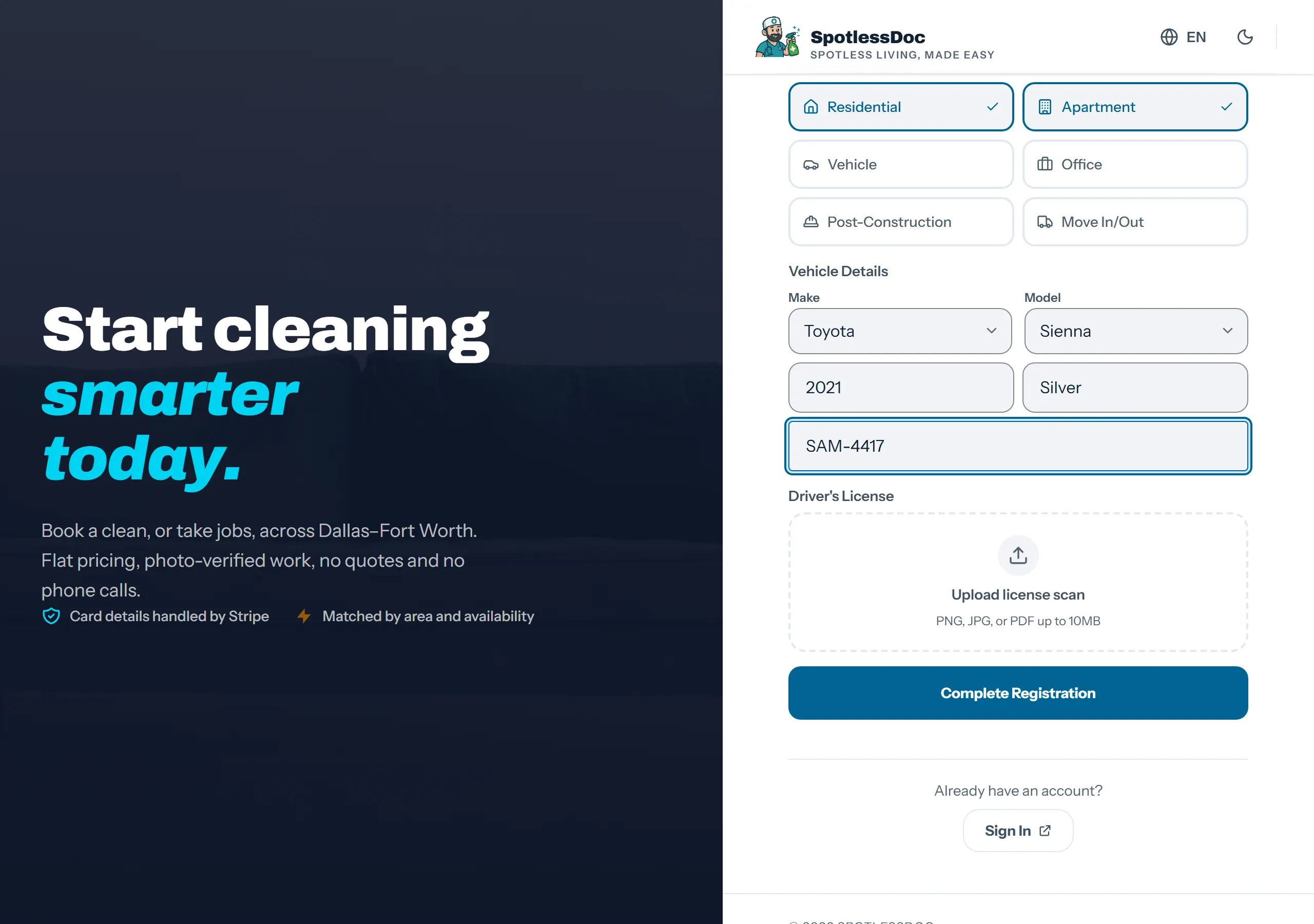
Cleaning specialties are required — Complete Registration stays greyed out until at least one is chosen. Pick every type you will actually take; each one is a category of job you become eligible for, and leaving one off simply means never being offered it.
Year, colour and plate are plain text. The driving licence upload is optional here and can be added later from Settings.
Press Complete Registration and you land on your dashboard.
Step 3 — where you work
Section titled “Step 3 — where you work”This is the step that decides whether you get offered anything. Go to Settings → Service Area.
Add every ZIP code you are willing to travel to, one at a time. A job in a ZIP that is not on your list is never offered to you, no matter how close it is or how free your calendar looks.
Business address is your home base. Maximum service radius is the fallback used when a job sits outside your listed ZIPs but still within that distance.
Step 4 — when you work
Section titled “Step 4 — when you work”Settings → Availability holds three things, and all three narrow what you are sent.
- Available days — tap the days you work. A day left off is a day you are not offered.
- Home-clean levels — Standard, Deep and Move In/Out. Only the levels switched on here are sent to you.
- Services you offer — the same idea at the category level: Residential, Apartment, Vehicle, Office, Post-construction, Move in/out.
- Max jobs per day — your own cap. It is not a target; it stops the matcher stacking more on you than you can finish.
Each control saves as you set it, so there is no Save button on this screen — unlike Service Area, where there is.
Step 5 — getting paid
Section titled “Step 5 — getting paid”Check your vehicle details carried over from signup under Settings → Vehicle. If the make and model are blank, the search box was typed into but never picked from — set them again here.
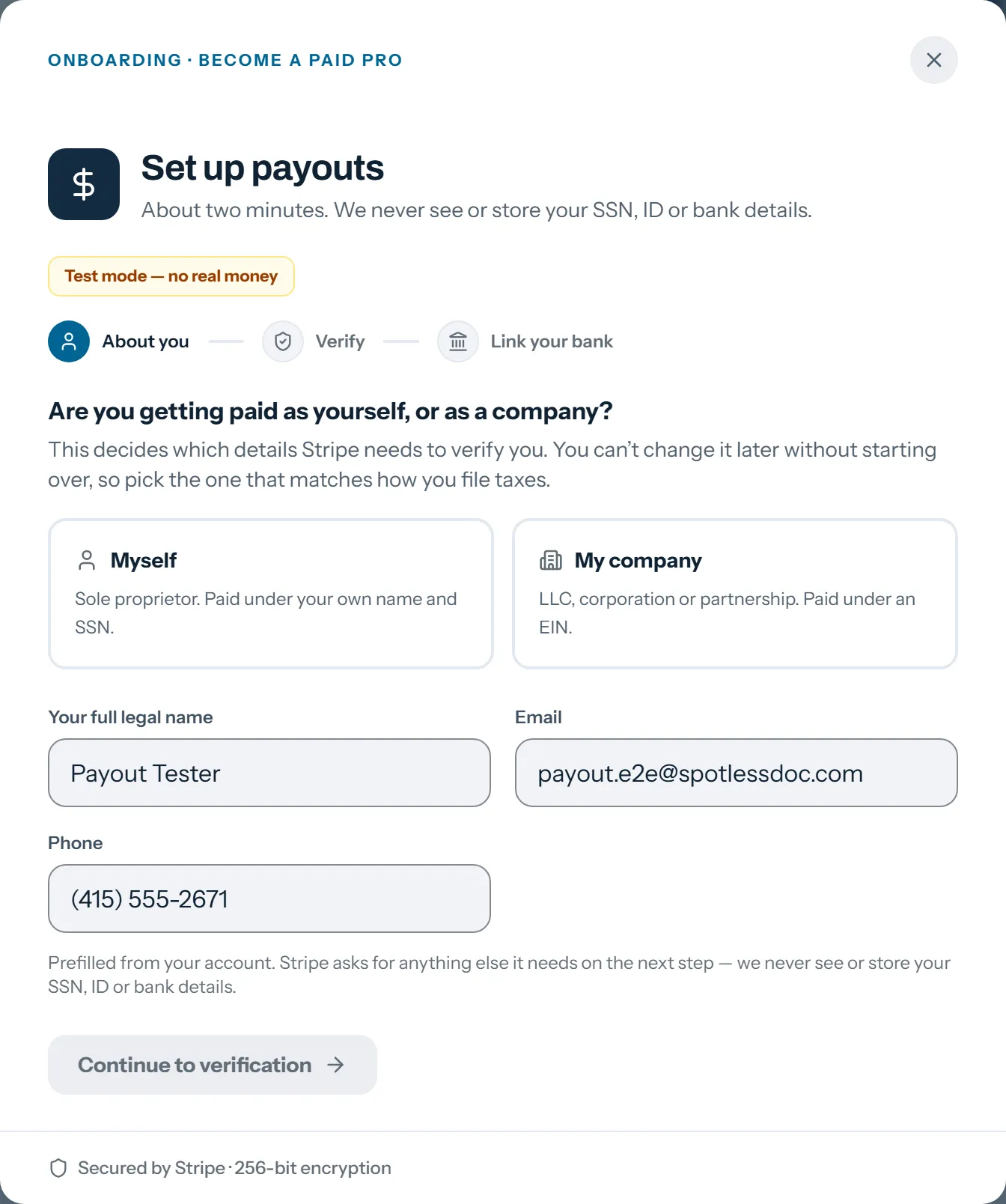
Then open the side menu and choose Payouts Setup. It opens over the dashboard and runs in three steps: About you, Verify, Link your bank.
-
About you. This step is ours, and it asks one real question: are you paid as yourself or as a company. A cleaner working alone picks Myself. Your name, email and phone are already filled in from your account — correct them if they are wrong, because Stripe checks them.
-
Verify. Continue to verification hands over to Stripe, inside the same dialog — you never leave SpotlessDoc. The blue panel lists what is still outstanding in plain words, and Stripe’s form underneath asks for exactly those things and nothing more: expect your address, date of birth, the last four digits of your SSN, and your bank account.
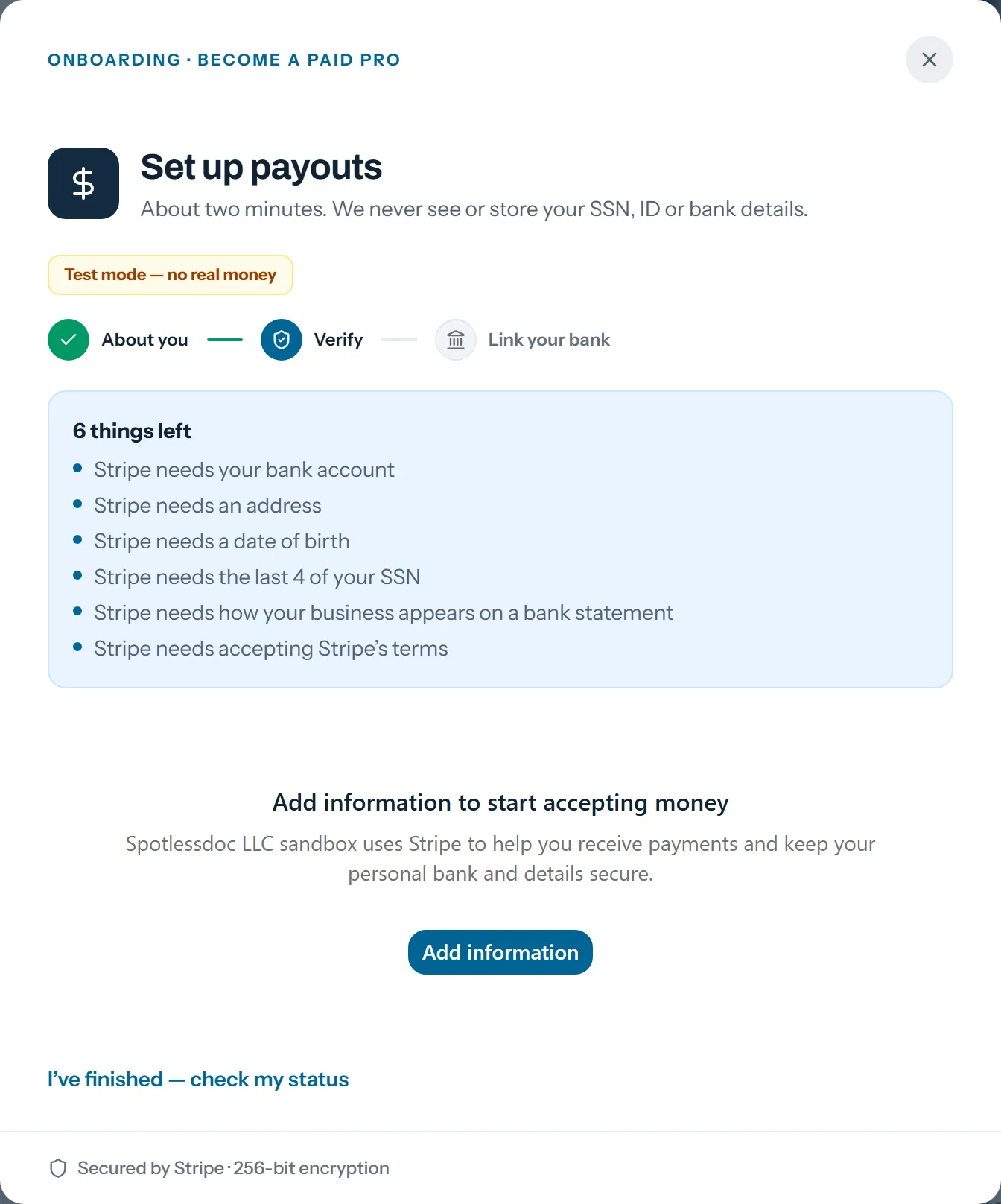
Stripe asks for its own sign-in first, by text message. That step is Stripe’s, not ours, and it cannot be skipped on this kind of account.
-
Link your bank. Choose your bank and sign in when offered — it is faster than typing a routing number and it fails less often. Typing the numbers by hand still works if your bank is not listed.
When you are done, press I’ve finished — check my status. The screen then reads your account back from Stripe rather than taking your word for it, so it is the honest answer about whether you are set up.
After you finish
Section titled “After you finish”Work is offered by text and in the app. Cleaners holding a Pro membership — their own, or one their company pays for — see new jobs 60 seconds before everyone else, and pay a lower commission.
If nothing is reaching you, it is almost always the first row.
| Symptom | Usually means | Where to fix it |
|---|---|---|
| No job offers at all | No ZIP codes saved | Settings → Service Area |
| Offers stop on some days | Those days are switched off | Settings → Availability |
| Only some kinds of job arrive | Specialties or service levels are narrow | Settings → Availability |
| Work arrives, money does not | Payout setup unfinished, or Stripe is waiting on one more detail | Side menu → Payouts Setup |
The first row is the one that catches people. Everything else about an account can look finished while it is true.
Settings can be changed at any time, and take effect on the next job matched — so narrowing your days or your area is a safe thing to try.