
Onboarding a cleaning company
This is the route onto SpotlessDoc for a company that employs or engages cleaners and sends them to jobs. Two signup screens, then a six-step setup.
Before you start
Section titled “Before you start”Have these ready before you begin. Stopping halfway to find a document is the most common reason setup stalls.
- Your legal business name, entity type and EIN
- A current certificate of insurance (COI) as a PDF
- A completed W-9
- The business bank account earnings are paid into
- The email addresses of the cleaners you will invite
- The ZIP codes your company covers
Step 1 — create your company account
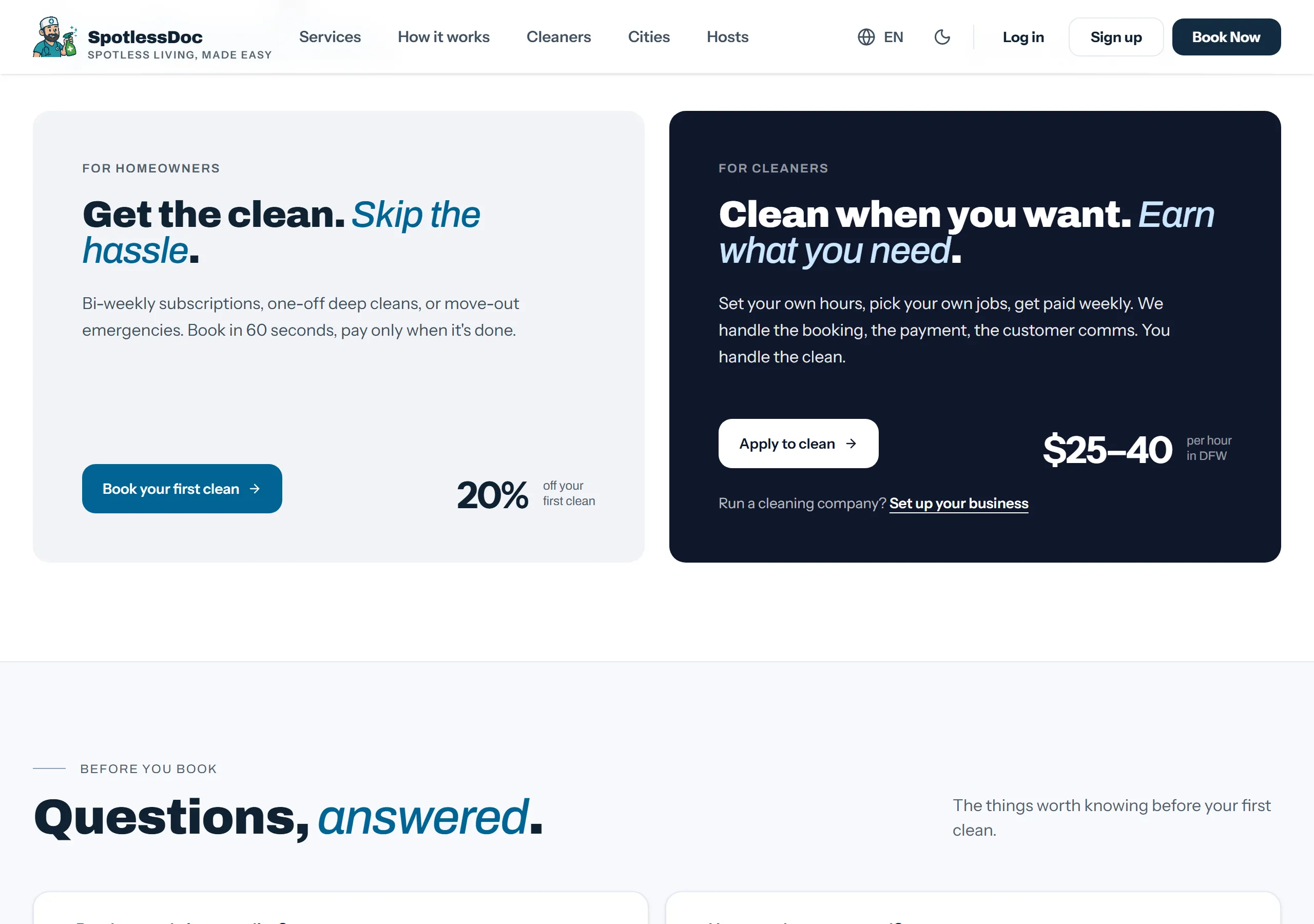
Section titled “Step 1 — create your company account”Start from the home page. The dark For cleaners panel is the way in for both routes; under the Apply button is the line Run a cleaning company? with Set up your business.
The first signup screen asks for the business, not for you: business name, email, phone, business address, password.
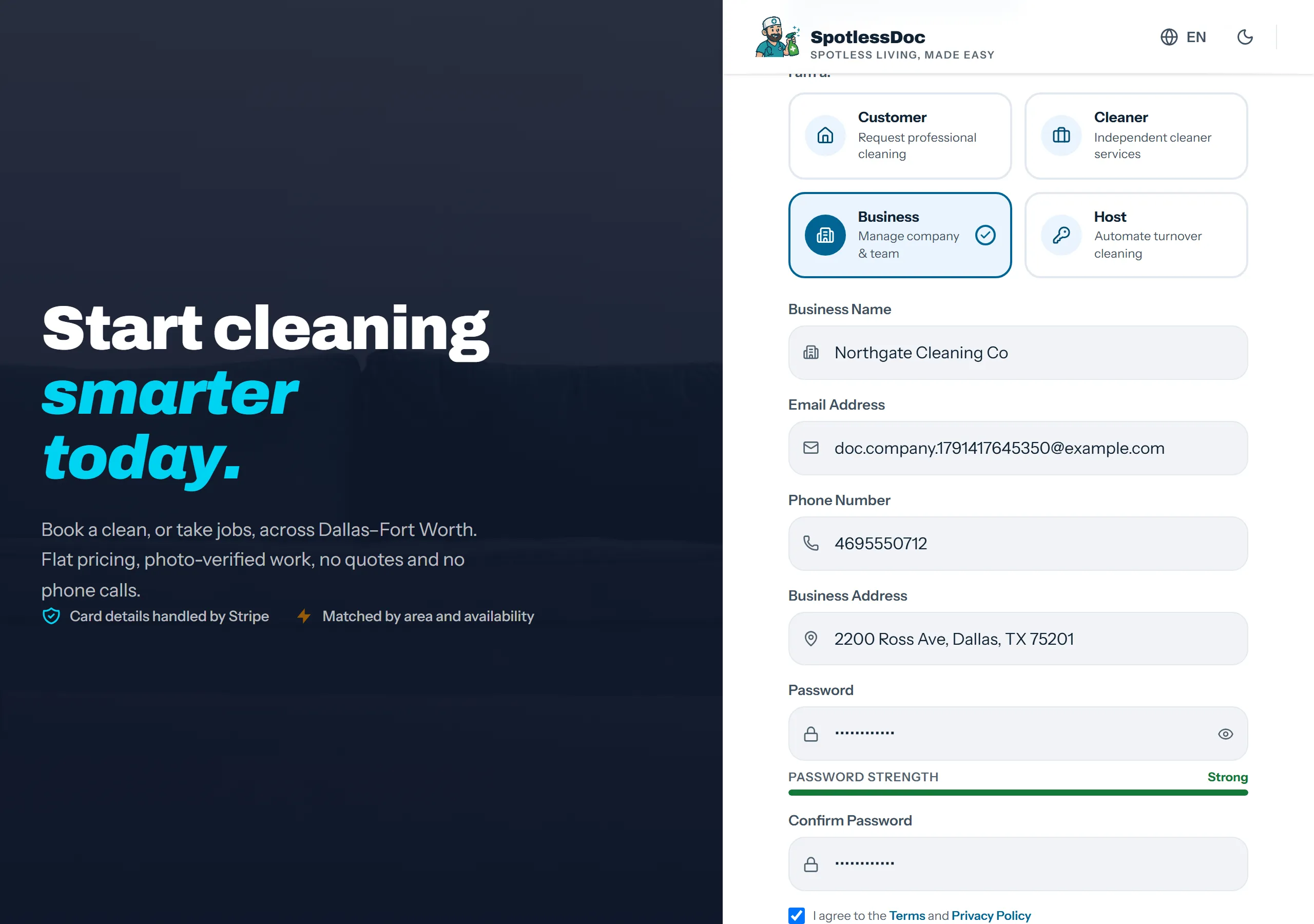
The business name you type here becomes your company’s name across the product — on the dashboard, on invitations to staff, and in what customers see. The legal name on your tax filings comes later and can differ.
The second screen asks team size and the specialties your company covers.
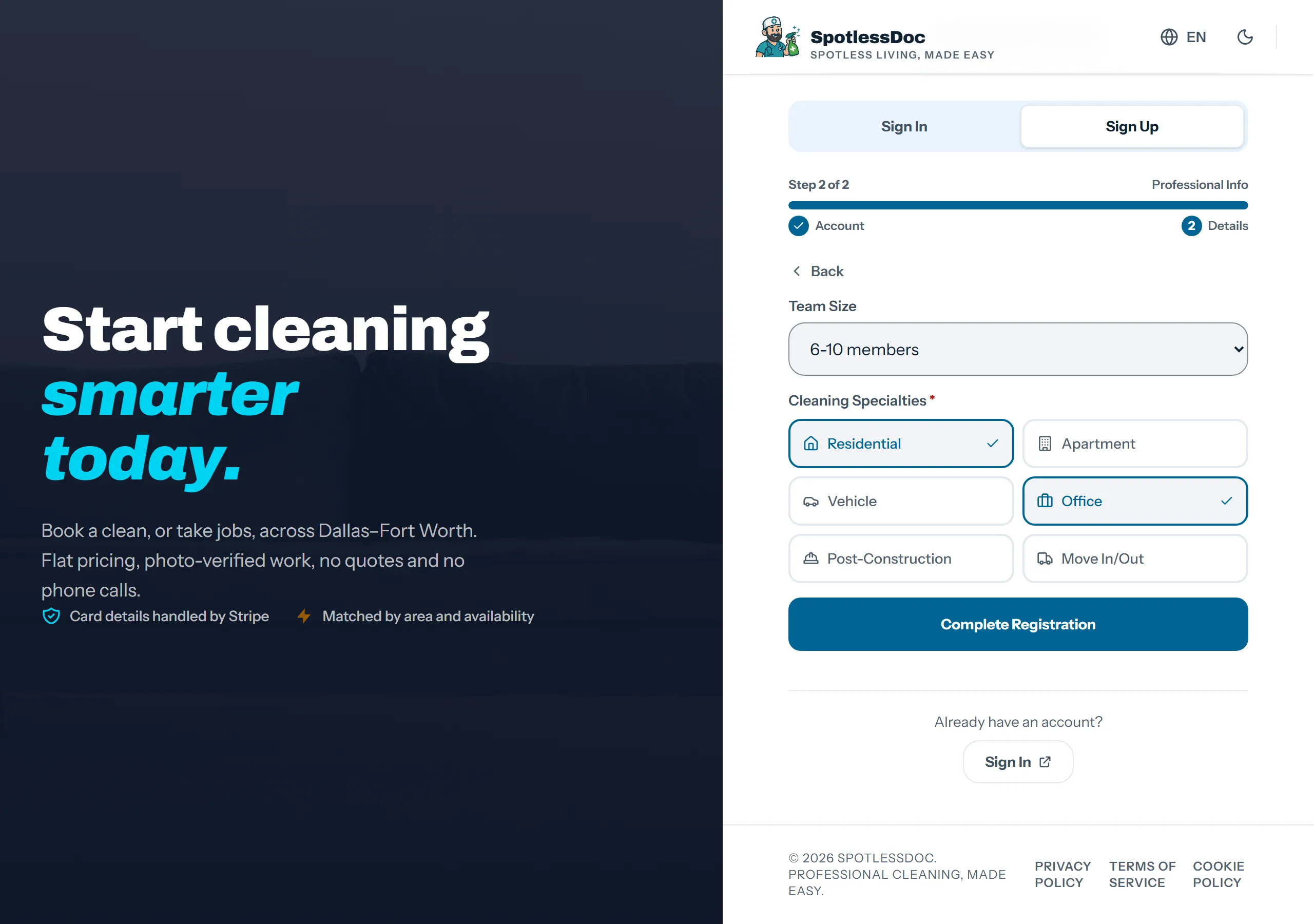
At least one specialty is required before Complete Registration will enable. Pick every type you will actually take; each one is a category of job your company becomes eligible for, and leaving one off simply means never being offered it.
Step 2 — your setup checklist
Section titled “Step 2 — your setup checklist”A new company lands on a dashboard led by a checklist, above the report. The report below it will read zero for now; the checklist is the reason why.
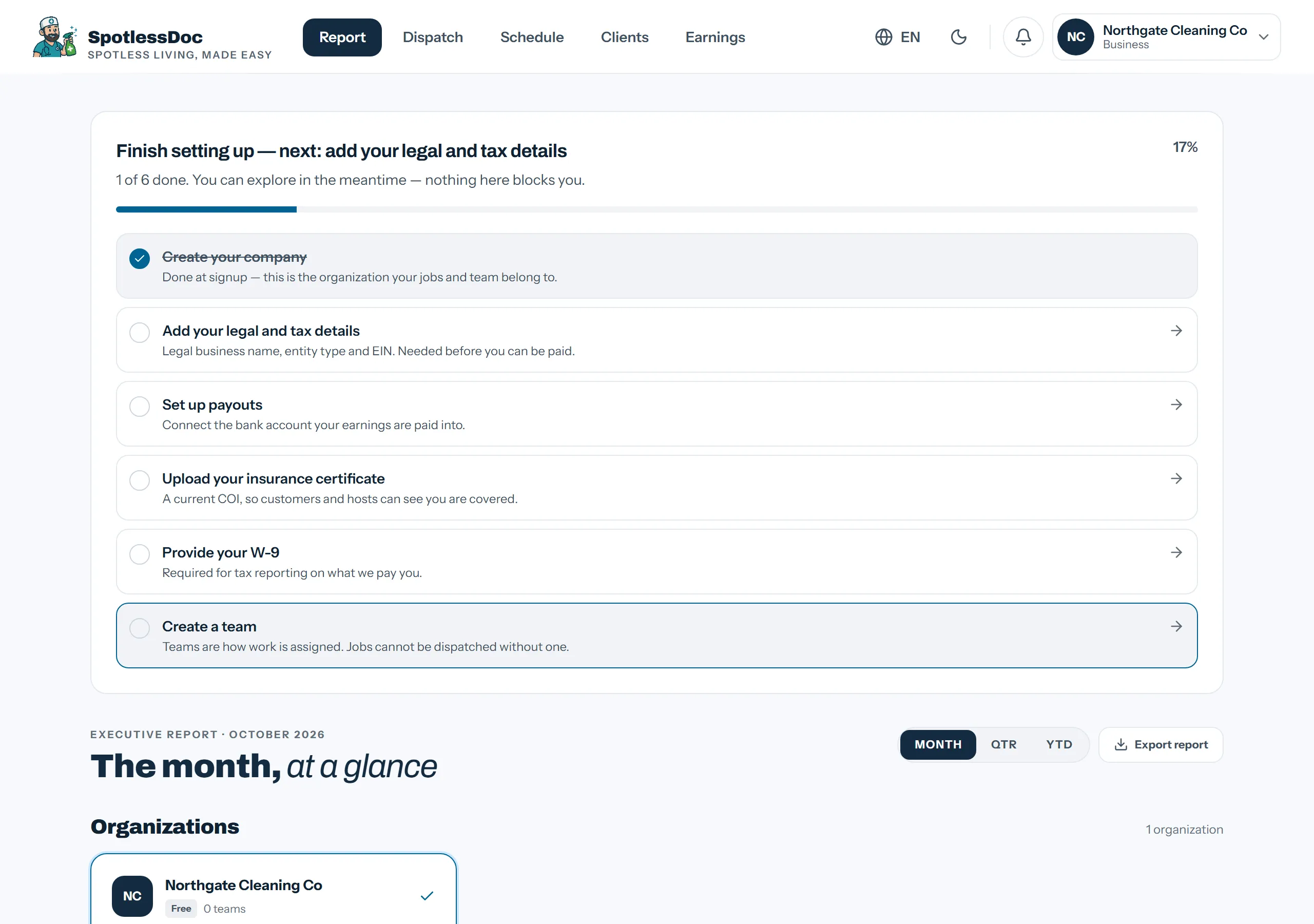
Six items, each linking to the screen that completes it:
- Create your company — already done at signup.
- Add your legal and tax details — legal name, entity type, EIN.
- Set up payouts — the bank account earnings are paid into.
- Upload your insurance certificate — a current COI.
- Provide your W-9 — for tax reporting.
- Create a team — jobs are dispatched to teams, not to a company.
Nothing here blocks you from looking around, and the checklist removes itself once all six are done. Items 2 to 5 all live in the Company Setup wizard, which the next sections walk through.
Step 3 — legal and tax details
Section titled “Step 3 — legal and tax details”Company Setup in the top navigation opens a six-step wizard. The rail on the left is the whole of what is required, and you can see at a glance how far along you are.
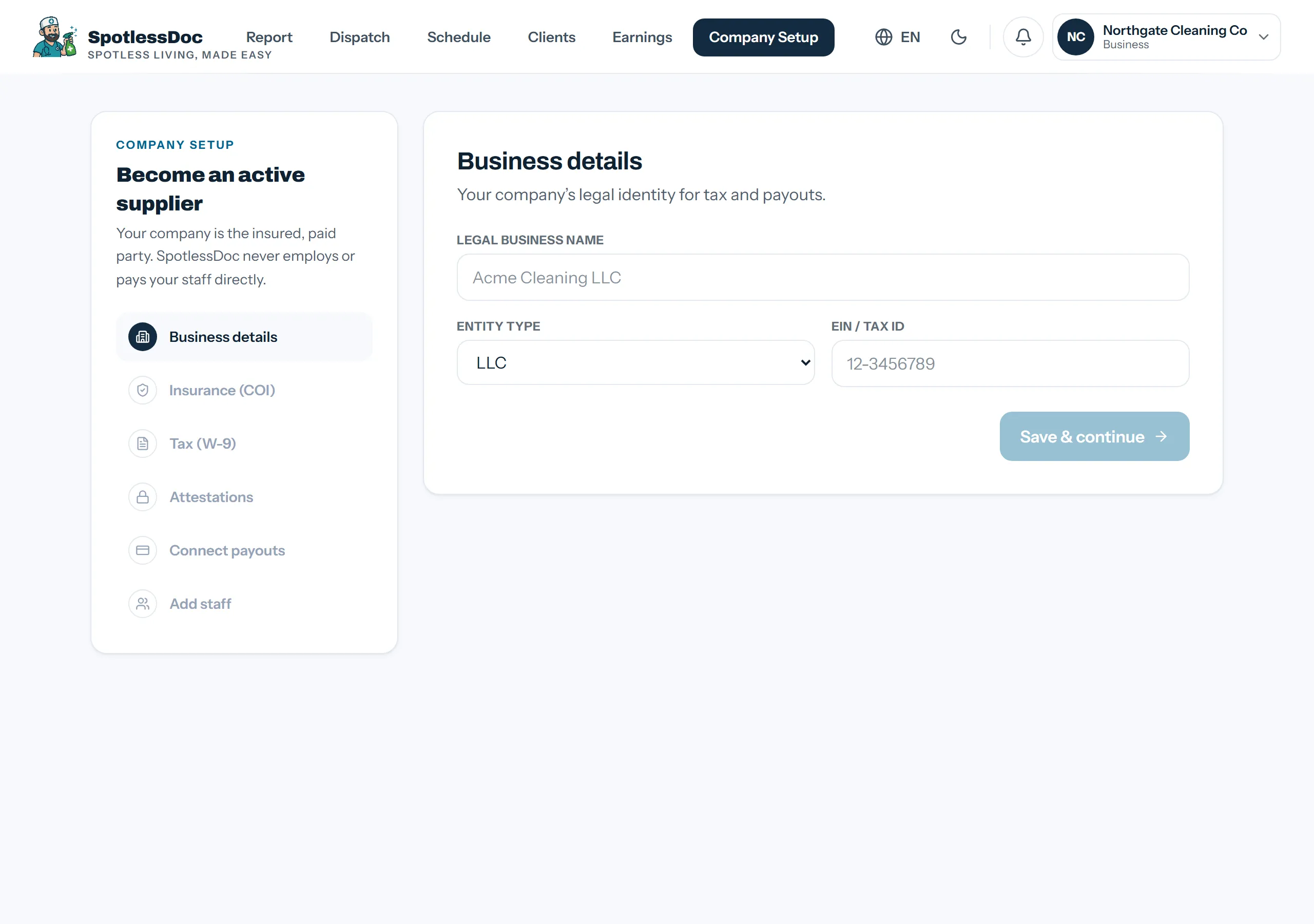
Step 1 is Business details: legal business name, entity type and EIN.
Use the name exactly as it appears on your tax filings, which may not be your trading name. Entity type defaults to LLC — change it if you are a corporation or a sole proprietorship, because it is what the W-9 and your payouts are set up against.
Save & continue moves you to the next step and leaves the details on file; reopening this screen shows them back.
Step 4 — insurance, W-9 and attestations
Section titled “Step 4 — insurance, W-9 and attestations”Three steps of paperwork, in the order the wizard asks for them.
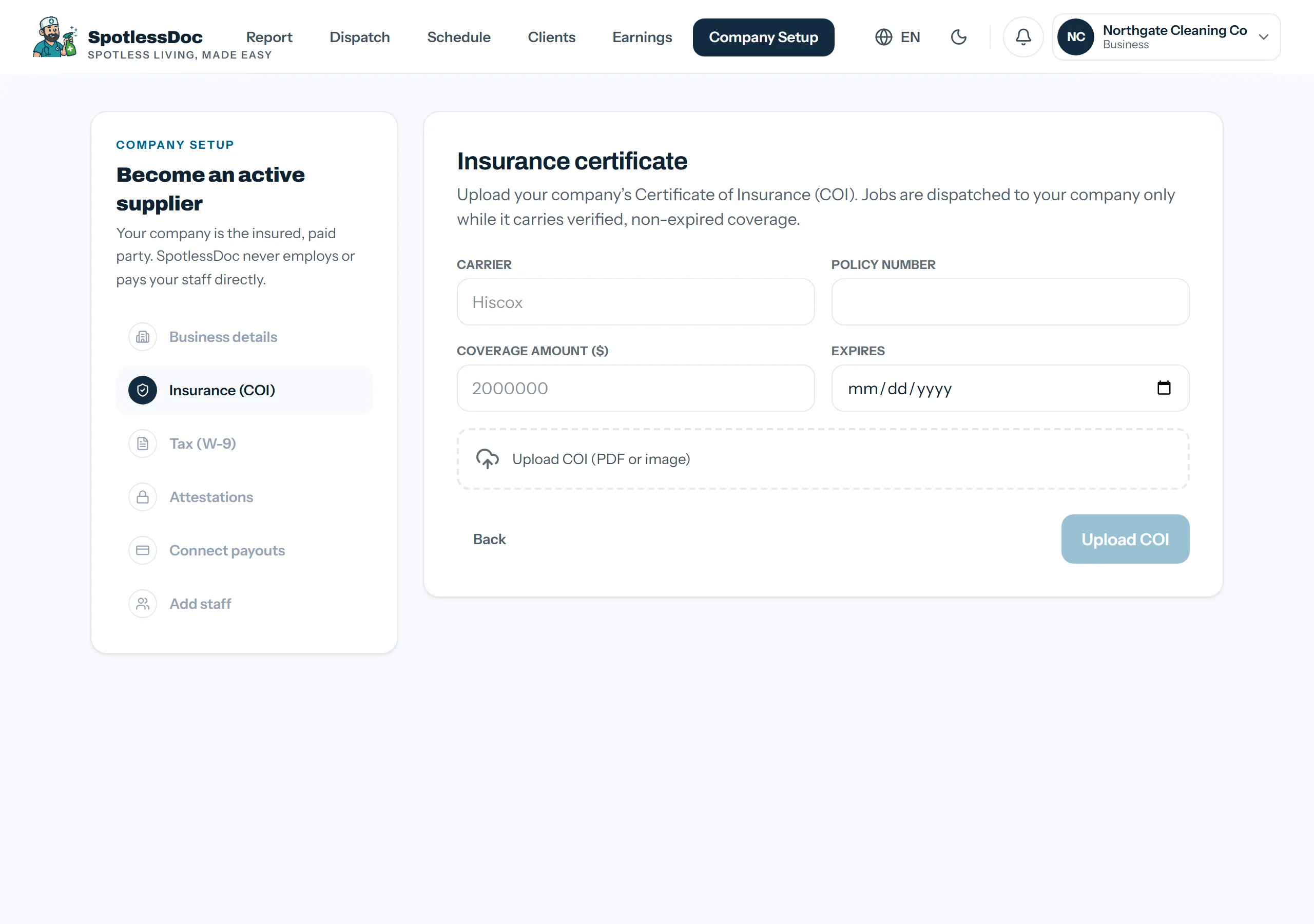
Insurance (COI)
Section titled “Insurance (COI)”Upload a current certificate, with the carrier, policy number, coverage amount and the dates it runs between.
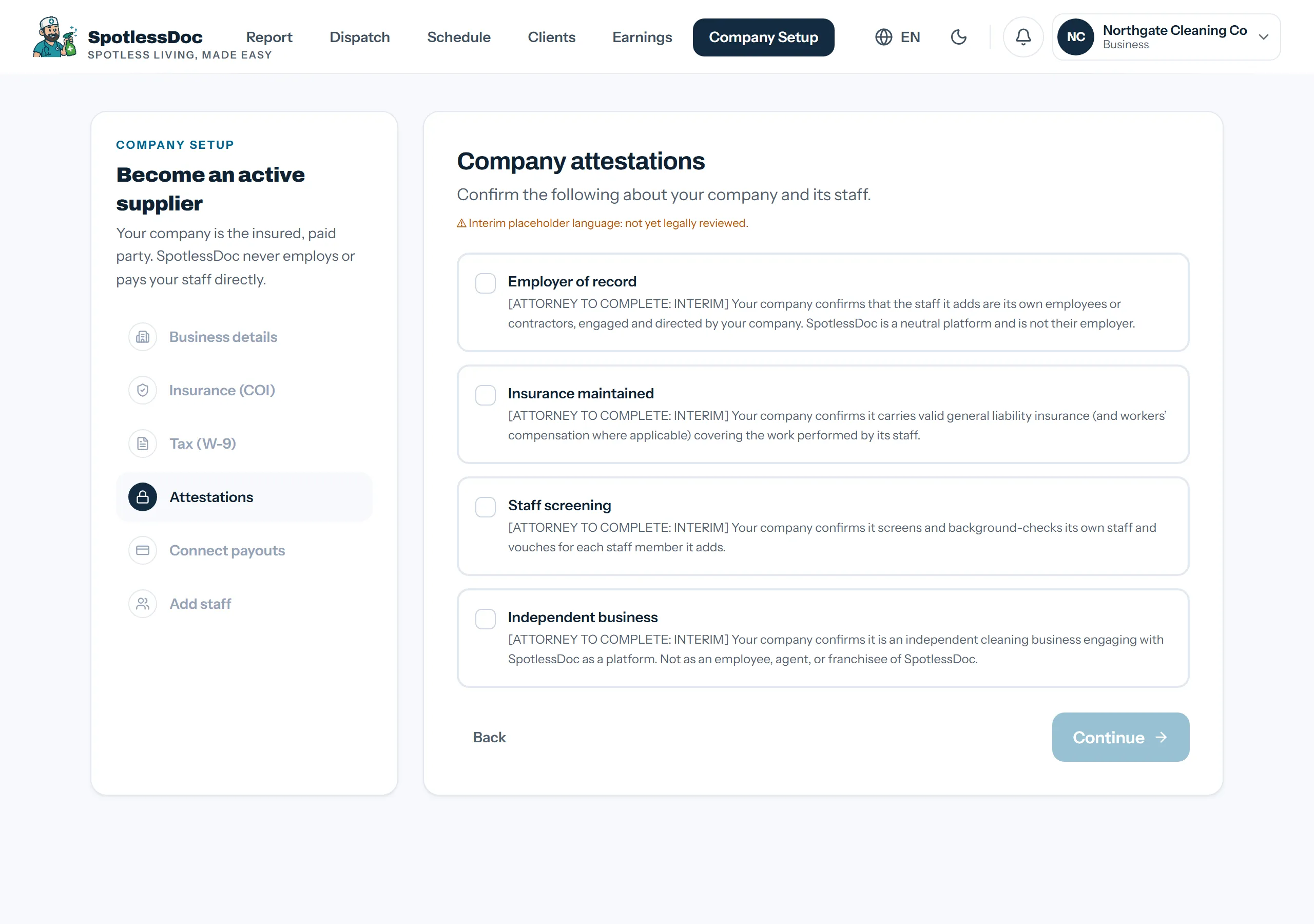
Tax (W-9)
Section titled “Tax (W-9)”Upload the completed form.
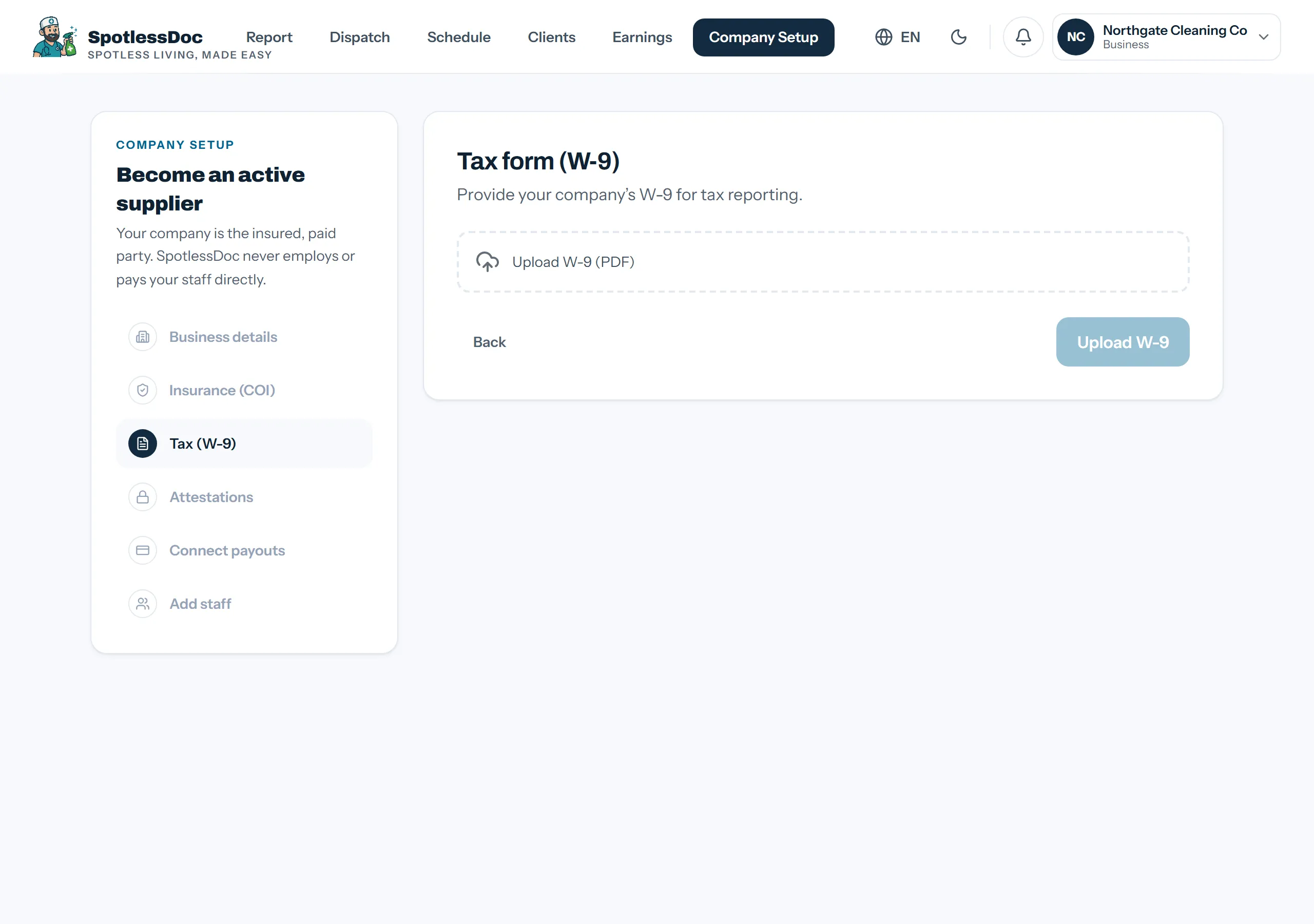
Attestations
Section titled “Attestations”Four statements to sign, about who employs your staff, that you keep insurance, that you vet your people, and that you operate as an independent business. They are the commitments behind the arrangement described on the left of the wizard, and all four are required.
Step 5 — payouts
Section titled “Step 5 — payouts”Connect payouts links the bank account your company is paid into.
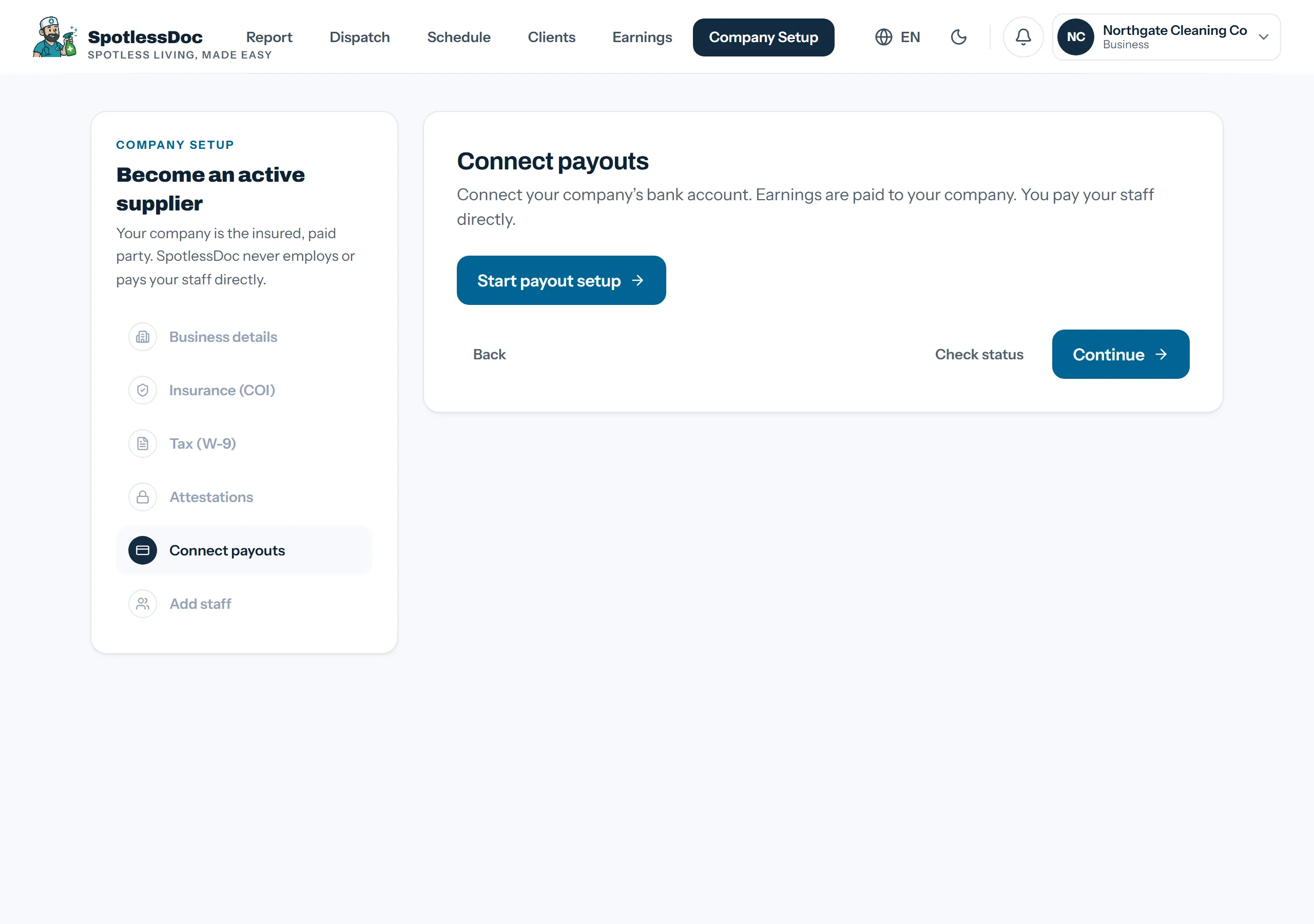
Start payout setup opens Stripe’s verification form inside this page — you do not leave SpotlessDoc for it. It asks only for what Stripe currently requires, not for everything it might ever want, so the list is shorter than it used to be and more of it arrives later if at all.
Have to hand an EIN, a business address, and an ID for whoever is named as the responsible person. Stripe asks for its own sign-in first, by text message; that step is Stripe’s and cannot be skipped.
For the bank account, choose your bank and sign in when offered rather than typing a routing number — it is faster and fails less often. Manual entry still works if your bank is not listed.
Check status re-reads where Stripe has got to, rather than taking the form’s word for it. Verification is not always immediate — if Stripe asks for a document, this step stays open until they accept it.
If Stripe later needs one more detail — after a volume threshold, or when a document expires — whoever runs the company gets a text and a banner on the dashboard, and the same screen reopens where it left off. Payouts pause rather than fail.
Step 6 — your team and the areas you cover
Section titled “Step 6 — your team and the areas you cover”The last step of the wizard is Add staff: invite the cleaners who work for you, by email.
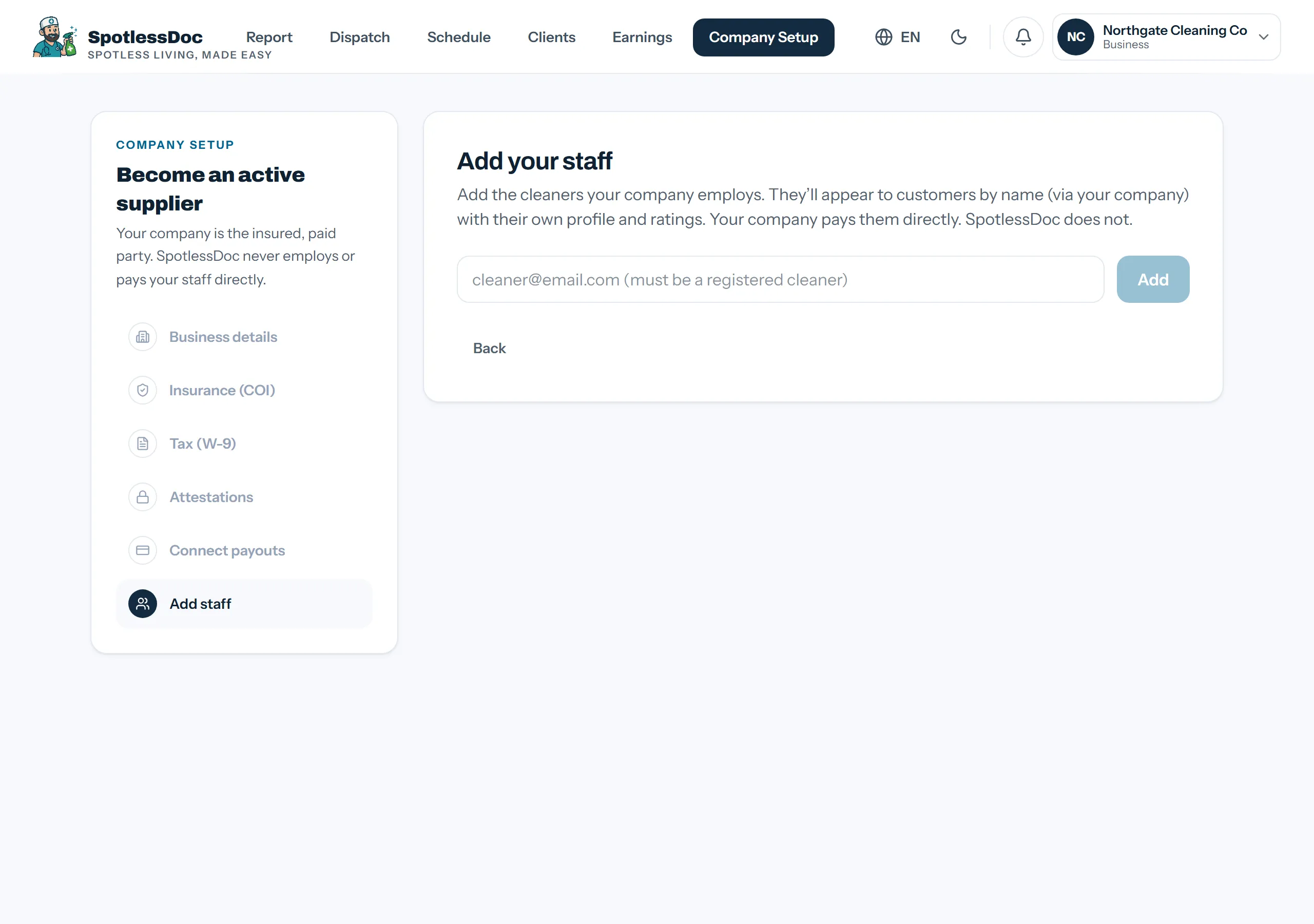
An invitation sits as invited until the person accepts. Until then they are not dispatched work — and, if your company holds a Pro membership, they are neither charged for nor covered by it.
Your staff do not set up payouts of their own. They are paid by you, so a cleaner who joins your company sees no payout step; the account from step 5 is the only one in play.
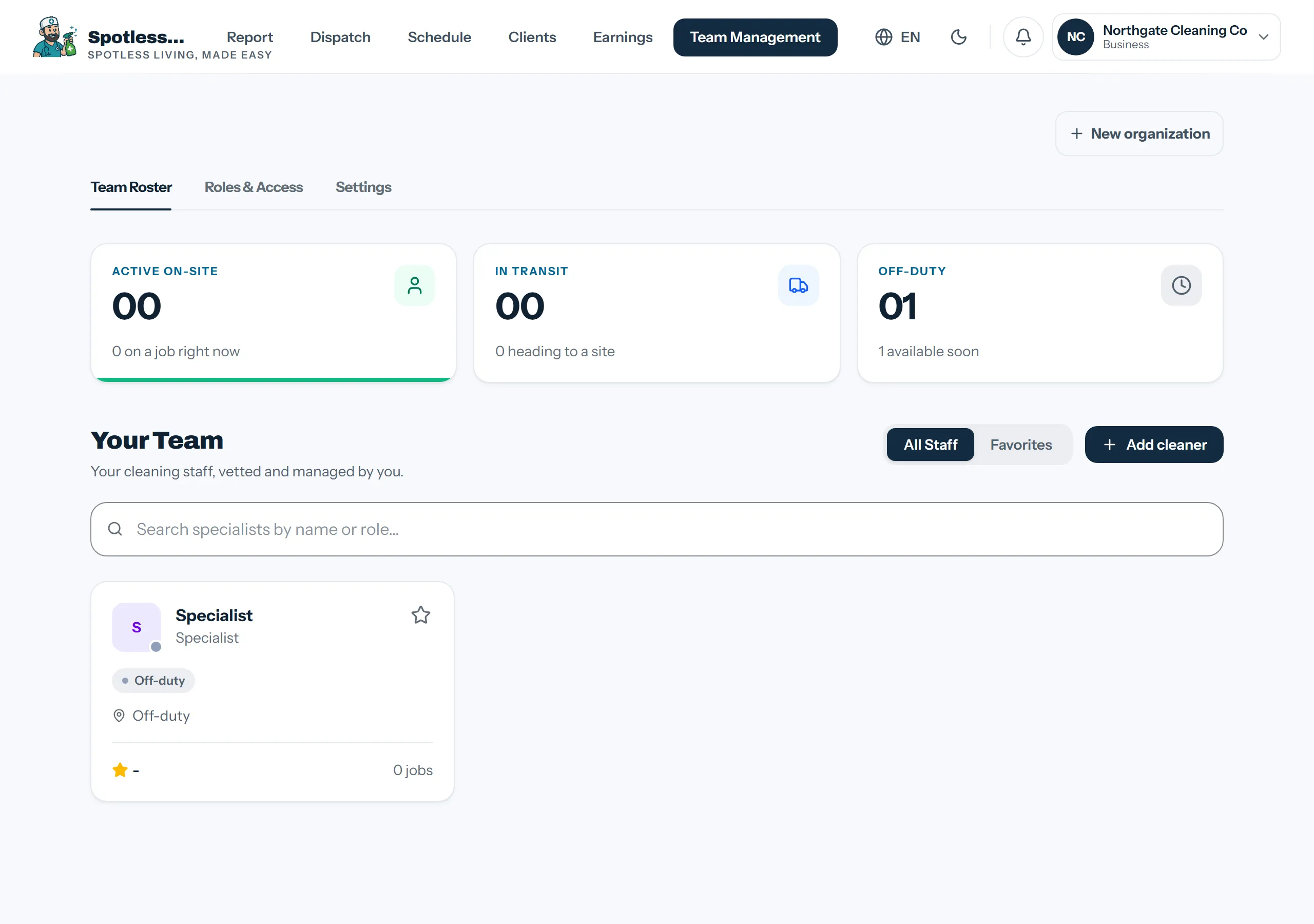
Teams are managed from the Team tab on the dashboard.
After you finish
Section titled “After you finish”Work is offered to your company by text and in the app, and you assign it to a staff member. Cleaners on a Pro membership — their own, or one the company pays for — see new jobs 60 seconds before everyone else, and pay a lower commission.
If nothing is reaching you, it is almost always one of the first two rows.
| Symptom | Usually means | Where to fix it |
|---|---|---|
| No job offers at all | No ZIP codes saved | The company’s service areas |
| Offers stop at the company | No team created | Team tab → New team |
| Checklist still shows insurance | The certificate is in review | Nothing to do; it clears when checked |
| Only some kinds of job arrive | Specialties are narrow | Company Setup, or each cleaner’s Availability |
| Work arrives, money does not | Payout setup unfinished, or Stripe is waiting on one more detail | Company Setup → Connect payouts |
| A cleaner gets nothing | Their invitation is still invited | Team tab — they have to accept it |
The first row is the one that catches people. Everything else about a company can look finished while it is true.
Settings can be changed at any time and take effect on the next job matched, so narrowing your days or your area is a safe thing to try.